
Georeferencing Maps
Use Allmaps Editor to georeference historical maps in your browser. This guide takes you through opening a map, drawing a mask, adding control points, and viewing the result.
To get started, you’ll need the URL of a IIIF resource containing a map. See Find maps to georeference for collection links and help finding a IIIF URL.
What is georeferencing?
Georeferencing connects places on a historical map to their geographic locations. You identify matching points on the map image and a modern reference map—for example, a church, a road junction, or a bridge. Each pair is called a ground control point (GCP).
Allmaps uses these control points to calculate a transformation that positions and warps the image so it can be displayed over a modern basemap.
The original image stays on the institution’s IIIF server. Allmaps stores your control points, map mask, and transformation settings in a Georeference Annotation. This allows Allmaps to display the georeferenced map in your browser without creating a separate image file.
Step 1: Open a IIIF resource
- Open Allmaps Editor.
- Paste a IIIF resource URL into the input field and press Enter. You can also choose one of the example maps on the Allmaps Editor homepage.
- In the Images tab, select the image you want to georeference. A resource may contain a single image or several images, such as the pages of an atlas.
The navigation at the top takes you through four steps: Images, Draw mask, Georeference, and Results. You can move between them as you work.
If the image already has a mask or control points, someone has started georeferencing it. You can review and improve their work.
Step 2: Draw a mask
A map mask outlines the part of the image you want to georeference. It determines which area is displayed in the results and in Allmaps Viewer.
- Open the Draw mask tab.
- Zoom in and click around the edge of the map to draw its outline.
- Click Finish or the starting point to close the mask. To cancel an unfinished mask, click Cancel.
You can adjust the mask after drawing it.
Edit a mask
You can refine the outline in the Draw mask tab:
- Drag a point to move it.
- Click and drag an edge to add a point.
- Right-click a point to remove it.
If the image contains several maps, open the Maps panel and select the map you want to edit. Its mask is highlighted with a thicker outline.
To delete a map, click its trash icon in the Maps panel and confirm. This removes the map, including its mask and control points.
Step 3: Add ground control points
Ground control points (GCPs) connect locations on the historical map to the same places on a modern reference map.
- Open the Georeference tab. The map image appears on the left and the reference map on the right.
- Find the area shown on the historical map. You can zoom and pan the reference map or use the search button to find a place.
- Choose a recognizable feature, such as a church, road junction, or bridge. Click its location on both sides to create a ground control point. Matching numbers identify the pair.
- Add at least three ground control points. Ideally, they are spread out over the map and do not lie on a straight line.
Choose features whose locations have stayed the same over time. Adding more well-placed ground control points can help improve the alignment.
Allmaps uses a polynomial transformation by default, which requires at least three ground control points and works well for most maps. You usually don’t need to change it.
After adding three ground control points, the transformed mask appears on the reference map. Open the Results tab to see the historical map overlaid on the reference map.
Edit ground control points
In the Georeference tab, drag a ground control point on either the image or the reference map to adjust its position.
Open the Maps panel to see the ground control points for the selected map. Select a ground control point in the list to locate it in both views. To remove it, click its trash icon and confirm.
If the image contains several maps, select the map you want to work on in the Maps panel. Each map has its own ground control points.
Navigate the image and reference map
Zoom and pan either view to position your ground control points precisely. Use the search button to find a place on the reference map.
To rotate the image or reference map, hold Ctrl and drag with the left mouse button.
Adjust the display
Click the cogwheel icon in the map view to open the display settings.
The Georeference and Results tabs have separate settings for map opacity and mask visibility. By default, the Georeference tab shows the transformed mask. Increase its opacity setting to also display the warped map image while placing ground control points.
You can also choose a different background map, enter a custom XYZ tile URL, or load a Georeference Annotation to use another georeferenced map as a reference.
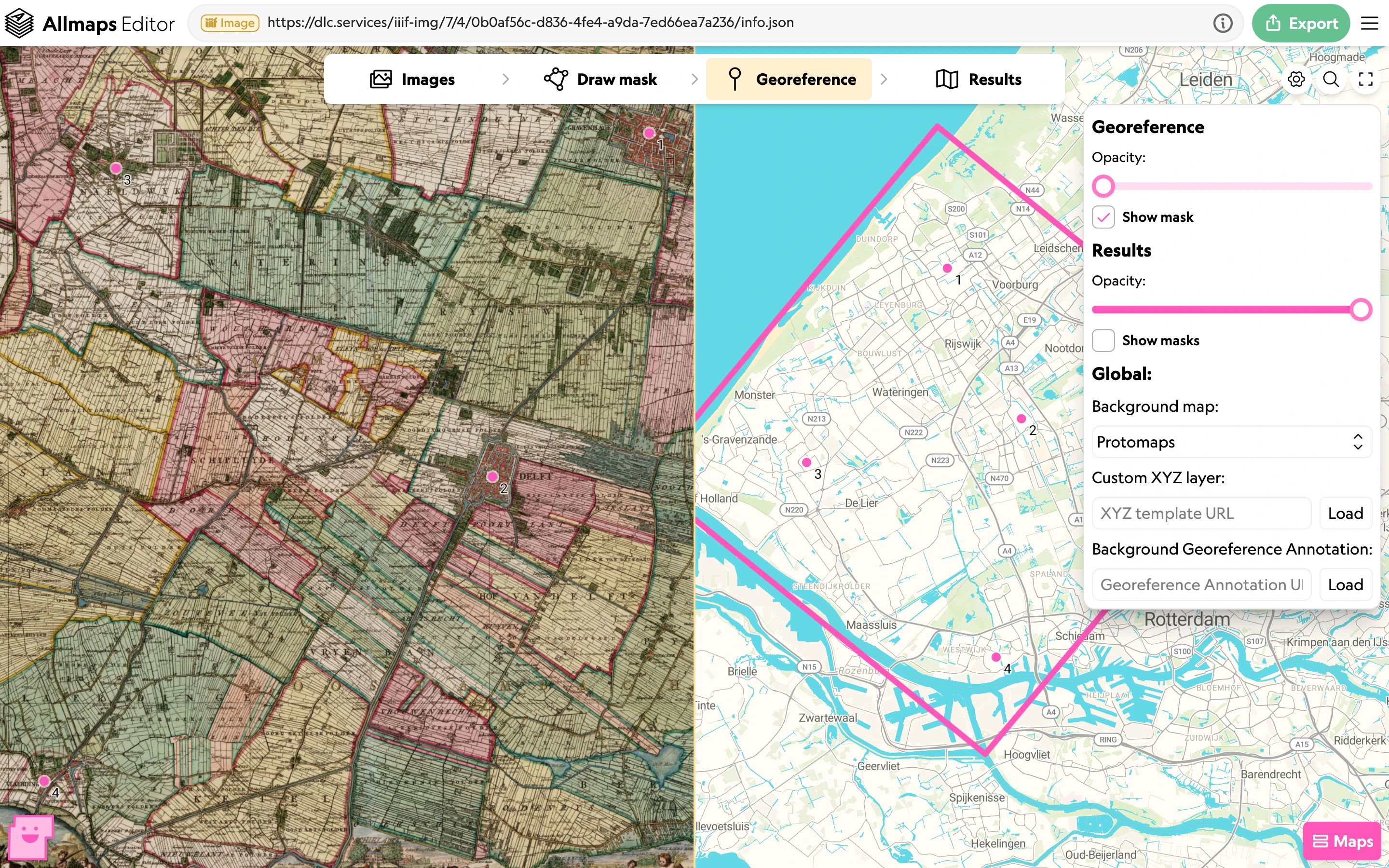
The display settings panel controls opacity, mask visibility, and the background map. Four saved ground control points link the historical map to the reference map. Historical map: Nicolaes & Jacob Kruikius, ’t Hooge Heemraedschap van Delflant (1712), Hoogheemraadschap van Delfland / TU Delft Library.
Import existing georeferencing data
If you already have a mask or ground control points for an image, you can import them into Allmaps Editor instead of drawing them again.
- Open the image and select the map you want to update. If it doesn’t have a mask yet, draw a temporary mask with at least three points.
- Open the Maps panel.
- Choose Edit or import mask… or Edit or import GCPs… for the selected map.
- Paste your data into the text field, or use Upload to read it from a file. The dialog lists the supported formats and checks your data.
- Click Save, then check the imported mask or ground control points on the map.
Masks can be imported as a list of image pixel coordinates, a JSON array, or an SVG polygon. Ground control points can be imported from formats used by QGIS, GDAL, and ESRI. Image coordinates must correspond to the original IIIF image’s dimensions.
Step 4: View and export results
Open the Results tab to see your georeferenced map overlaid on the reference map. The image is cropped to the mask you drew.
Zoom and pan to check how well recognizable features line up. Hold Space to temporarily hide the historical map and see the reference map underneath. Release it to show the historical map again.
If the alignment needs improvement, return to the Georeference tab to adjust or add ground control points.
Use the Show menu at the bottom to choose which maps to display:
- Current map: the selected map.
- Current image: all maps in the selected image.
- All images: all maps across the loaded resource.
The available options depend on the resource you opened.
Choose a transformation
A transformation determines how Allmaps positions and warps the historical map using your ground control points. The default, Polynomial, works well for most maps. You usually don’t need to change it.
To try another transformation, open the Maps panel, select a map, and use the Transformation menu:
- Polynomial moves, rotates, scales, and skews the image to fit the ground control points.
- Helmert moves, rotates, and scales the image uniformly, preserving its shapes and proportions.
- Thin plate spline bends the image to pass through each ground control point. It can accommodate local differences, but may introduce distortion between points.
Polynomial and Helmert find an overall fit, so individual ground control points may not align exactly. Before changing the transformation, check that your ground control points are accurate and spread across the map.
Share and export your map
Click Export to open the export panel. Under Export options for, choose Current map, Current image, or All images. The available options depend on the resource you opened.
The panel provides links you can open or copy:
- View in Allmaps Viewer: explore and share the selected maps. Choose Latest version to include future edits, or Current version to keep the link fixed to the current georeferencing. See Share a map for details.
- Georeference Annotation: access the georeferencing data for your selection. Multiple maps are returned together in an Annotation Page. Use Code to inspect the annotation.
- XYZ map tiles: use the georeferenced maps as a tile layer in GIS software or a web map.
Select Show more export options for GeoJSON, web mapping code examples, and instructions for creating a GeoTIFF.
See Georeference Annotations for details about the data format, or Using maps in other tools for more ways to use your work.
Versions and shared edits
Anyone can edit a map in Allmaps Editor, including maps you have georeferenced. Allmaps keeps a history of the georeferencing data, so you can refer to a specific version even after further edits.
An annotation URL without a version returns the latest georeferencing data.
A versioned URL adds @ followed by a version identifier:
| Version | Annotation URL |
|---|---|
| Latest | https://annotations.allmaps.org |
| Specific version | https://annotations.allmaps.org |
Each annotation includes its versioned URL in body._allmaps.version. Copy
this URL when you want to share or use a particular version. You can also open
it in Allmaps Viewer.
Use the unversioned URL to follow ongoing improvements, or the versioned URL to keep the georeferencing fixed for a publication or project.